Share This Article
Two-factor protection for your account is listed among the 1xBet app customization options, next to adding or removing menu items and saving payment cards. Once it is on, a login needs your password plus a second factor, which is the documented purpose of the feature. Before you enable it, confirm the phone number and email on your profile, because recovery depends on those details being real. Everything below covers preparation, switching it on, the new sign-in flow, and what to do if you get locked out.
What two-factor protection changes
Standard sign-in asks for one thing you know: your username or phone plus your password. With protection enabled, that single step becomes two. The password stays, and a second factor joins it. The app describes this as stronger account protection, and that is the whole scope of the change.
The practical effect is simple. A stolen password alone stops being enough to open your account. Someone would also need the second factor, which is why the feature is worth the extra few seconds at each login.
| Stage | Protection off | Protection on |
|---|---|---|
| First entry | Username or phone plus password | Username or phone plus password |
| Second entry | Not required | Second factor required |
| Typical duration | A few seconds | A few extra seconds |
| Password-only access | Enough to sign in | No longer enough |
Preparation checklist before you switch it on
The second factor only helps if the account can still reach you. That means the contact details on your 1xBet profile need to be current and genuinely yours. Registration collects a phone number and an email, and reviewers stress using true registration data because recovery runs through it.
- Check the phone number on your profile is one you carry and can receive messages on.
- Check the email address is one you still open, not an old inbox you abandoned.
- Confirm you know your current password, since you will type it at every login.
- Make sure you are signed in on the device where you plan to enable protection.
- Decide which second factor you can consistently access when away from home.
- Note down the support channels in case something goes wrong later.
If either contact detail is wrong, fix it before enabling anything, because changing details after protection is on can be harder and a wrong number turns a small login problem into a lockout. If you are reinstalling the app on a new handset, the 1xbet apk is useful reference material, but reinstalling does not by itself change the protection settings on your account.
Where the setting lives in the 1xBet app
The 1xBet mobile page groups two-factor protection with customization options. You will not find it on the betting slip or the live odds screen. It sits with account-level settings, close to menu configuration and saved payment cards.
- Open the 1xBet app and sign in with your current credentials.
- Go to the profile or account area, usually reached through the person icon.
- Open the settings or customization section.
- Look for the security entries, where protection can be activated.
- Read the on-screen description before you confirm anything.
The exact label and position can shift between app versions and between Android and iOS builds, so treat the section names above as a path, not a guarantee. If you cannot find it, the same option is normally reachable through the mobile site’s account area, and the browser version and the 1xBet app feed the same account.
Enabling it, step by step
Only start once the checklist above is finished. The process itself is short, but every step assumes your contact details are accurate.
- Sign in to your 1xBet account on the device you trust most.
- Open the profile menu and then the settings area.
- Select the two-factor protection option and read what it says.
- Choose the second factor you will use, based on what the screen offers.
- Follow the confirmation prompt, which typically verifies that you control that factor.
- Complete any code entry the 1xBet app requests during setup.
- Log out and log back in once, deliberately, to prove the flow works.
That last step matters more than it looks. Testing immediately means you discover any problem while you are still signed in and calm, rather than at a cashier desk or during a match you wanted to watch. Two-factor authentication as a general concept works the same way across services, and the two-factor authentication overview explains why possession plus knowledge beats knowledge alone.
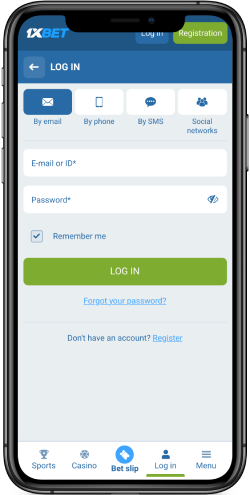
Your new login flow, start to finish
After activation, the shape of signing in changes. It is not harder, just longer by one step.
| Step | What you supply | What to watch for |
|---|---|---|
| 1 | Username or phone number | Use the exact detail on your profile |
| 2 | Password | Typos lock you out just as fast as before |
| 3 | Second factor | Enter it promptly, codes can expire |
| 4 | Confirmation | You land on the main screen |
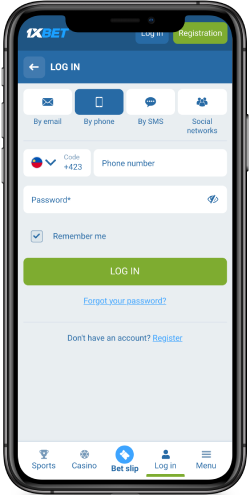
Two behaviours catch people out. First, the second factor is requested at every fresh login, not once per device forever. Second, if the factor depends on your phone and your phone is elsewhere, you cannot sign in until you have it again. Plan for that before a weekend away, especially if you intend to place a bet or check odds from a different location than usual.
Recovery and lockout considerations
Lockouts happen for ordinary reasons. A lost handset, a changed number, an expired code, or a forgotten password all produce the same result: you cannot get in on your own. The difference between a five-minute fix and a long wait is whether your registration data was genuine.
- Registration details are the basis of account recovery, so false data weakens your position.
- Support can be reached through live chat, phone, and email.
- Have identifying information ready before you contact support.
- Expect the recovery route to depend on matching the details on file.
Treat the second factor as something you own, not something you borrow. If it is tied to a number you share with a family member or an email someone else can open, the protection is weaker than you think. The same applies if you enable it on a shared device that others sign into with their own accounts.
Protection only works while the recovery route stays in your hands. Keep the phone number and email current, and review them after any change of handset or provider.
Adjusting or switching protection off
Preferences change. You might move to a new number, or find the extra step inconvenient during a busy period. Whatever the reason, reverse the change from the same settings area where you enabled it.
- Sign in while you still have access to your second factor.
- Return to the profile and the settings section.
- Locate the protection entry and follow the prompt to disable it.
- Confirm that the change saved, then sign out and back in to verify.
Do not disable protection because of one frustrating login. Fix the underlying issue instead, whether that means updating a stale email or switching to a factor you actually carry. Turning protection off removes the very thing that made a stolen password insufficient, so make that decision deliberately rather than in a hurry.
Common mistakes worth avoiding
Most problems come from skipping preparation, not from the feature itself.
- Enabling protection with an email you no longer read.
- Using a phone number that is about to change.
- Assuming the extra step appears only on one device.
- Disabling protection after a single failed code entry instead of retrying.
- Sharing a device and expecting separate protection behaviour.
If a code does not arrive, wait a moment and request another rather than entering a guess. Repeated wrong entries can slow you down further. And if the 1xBet app misbehaves on one handset, try the mobile site before assuming the account itself is the problem.
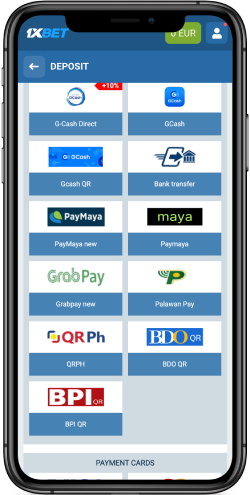
Saving cards for deposits is a separate convenience setting, grouped alongside protection in the app’s customization list. Turning one on does not turn the other on, and neither changes your password. Before your next betting round or checking casino play through the 1xBet app, confirm which of these options you actually enabled, because an assumption here is how accounts end up less protected than their owners believe.
FAQ
Can I enable protection on more than one device at once?
The setting applies to the account, not to a single handset, so signing in anywhere triggers the second factor. A tablet and a phone share the same protection state rather than holding separate ones.
What if my second factor is a number I plan to cancel?
Update the phone number on your 1xBet profile before you cancel the old line. Recovering an account from a disconnected number is far harder than editing a contact detail while you still have access.
Does a saved password manager interfere with the second step?
No. The manager can fill the password field, but the second factor is still requested separately. Autofill saves typing on step two, not the extra verification itself.
Why did the extra step not appear on my next login?
You may have signed in on a device or session that was already verified, or the change may not have saved. Log out fully and sign back in to check whether the second factor is genuinely required.
Can support remove protection if I cannot receive codes?
Support is reachable through live chat, phone, and email, and recovery depends on the details on your account. Expect any request to be checked against the registration data you provided.